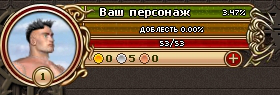

In the upper left corner of the screen is information about your character. The round window shows the character's image, their level (the number at the bottom of the window), and temporary effects on the character (the green fist icon at the bottom of the circle). Clicking on the character's level takes you to the character information page.
Next to the character window are three colored bars. The top green bar represents your character's experience. The character's name is also displayed on this bar. The experience is shown as a percentage, but hovering over the bar will show you the exact number of experience points needed to reach the next level. You can gain experience by completing quests from non-player characters, killing monsters, or players of the opposing race.
Below the experience bar is the valor bar. Valor is earned only by killing players of the opposing race and participating in battles on the Battlegrounds. The bar shows how much valor you need to earn the next military rank.
Below the valor bar is the red health bar. It shows your character's health level at a given time and the total amount of health. In combat, it is important to keep the health bar from dropping to zero, as your character will die.
Below these bars, you can see the amount of money your character has (copper, silver, gold coins, and diamonds).
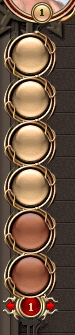
Below the character information is a set of slots for various useful elixirs and amulets that you can use during combat with monsters or other players. You cannot use items from these slots outside of combat.
At the top is the main game menu. This contains links to the most important functions of the game. The menu buttons can be rearranged to suit your preferences.
The "Inventory" button opens access to your character's inventory, stats, pets, combat skills, and a list of instances (dungeons).
Clicking the "Character" button gives you access to a submenu where you can find information about your clan, friends in the game, your achievements, and your ranking.
You can also fill out a character profile to make your communication in the game more comfortable.
The "Location" button closes all open windows and displays an image of the location you are in.
The "Hunt" button opens a special display mode of the location, where you can attack monsters and collect resources.
The "Battlegrounds" button opens access to team battles between players of opposing races. You can choose from the available battlegrounds and join the queue by clicking the corresponding button.
Battlegrounds are available from level 3.
The "Maps" button opens access to world maps and instance (dungeon) maps.
In the "Events" section, you can view a list of all current and upcoming game events with detailed descriptions. We recommend visiting all sections of the information portal - you will find a lot of interesting things there.
In the "Battles" section, you can view current and completed battles taking place in the location where the character is located.


The "Bank" button opens access to topping up your game account, personal and clan storage, and a store where
you can purchase a variety of amazing items. You can view the contents of the storage in any location. To perform actions with the storage, you must be in the location where there is a bank.


The "Auction" button opens access to the game auction and exchange, where you can buy and sell various in-game items. You can only sell items on the exchange and list items for auction in the location where there is an auction house.
The "Info Portal" button opens access to the game knowledge base and news. We recommend visiting all sections of the information portal - you will find a lot of interesting things there.


The "Forum" button opens the forum where players on your server communicate. Here you can find answers to game-related questions, get advice from experienced players, or ask questions to the project administration. In the right part of the screen is the game's side menu. The "Mail" button allows you to view received letters. You can only reply to a letter in a location with a mailbox. The "Inventory" button opens the character's combat inventory, from which you can use items in battle. The "Pet" button summons a rideable animal, if you have one, for use in both peaceful and combat situations. The "Compass" button opens the game navigator. With its help, you can find the desired location, resource, monster, or non-player character and plan a route to them. The "Professions" button allows you to view information about your crafting, production, and additional professions (level, available resources, etc.). The "Quests" button opens a list of your active quests. Here you can see a brief description of the quest, objectives, and the necessary monsters and non-player characters. The "Friends" button opens access to a list of friends, links to official game groups on social networks, and a special store where items are purchased with "Friendship Tokens". In the lower part of the screen is the game chat. The chat is the main means of communication between players. It also displays everything that happens with the character (start and end of quests, receiving rewards, notification of an attack, resource gathering, etc.). In addition, the chat displays announcements from the game administration, messages about the start and end of game events, ongoing contests, and important game news. Pay attention to the chat. In the right part of the chat window is a list of all players currently in the same location as you. By right-clicking on any player's nickname, you will access a list of possible interactions. There is also a "Group" button for creating groups to complete difficult quests together, and a chat settings panel for customizing the chat to your preferences. There are several chat channels: "Main" - where you can talk about anything not prohibited by the game rules. "Trade" - dedicated to in-game trading and advertising of game services. "Clan" - intended for communication between members of the same clan. "Group Channel" - for communication within a group. "Raid Channel" - intended for communication within a raid (e.g., in an instance). "Alliance Channel" - for communication within an alliance of friendly clans. You can switch between channels using the corresponding buttons. Here you can also view the combat log and statistics. In the center of the screen is the main game window. Currently, you see your first in-game quest.
Login
  I forgot my password

If you do not have a login, register.

Register

Password reminder
Error
Error